![acquire.blog.png]](https://help.acquire.com/hs-fs/hubfs/acquire.blog.png?height=40&name=acquire.blog.png)
Saved searches let you keep a named set of listing criteria, including your search, sort order, and filters. Instead of rebuilding the same search each time, you can apply it again from one place.
Saved searches are available to buyers. Your saved searches are private to your account, so other buyers can’t view or manage them.
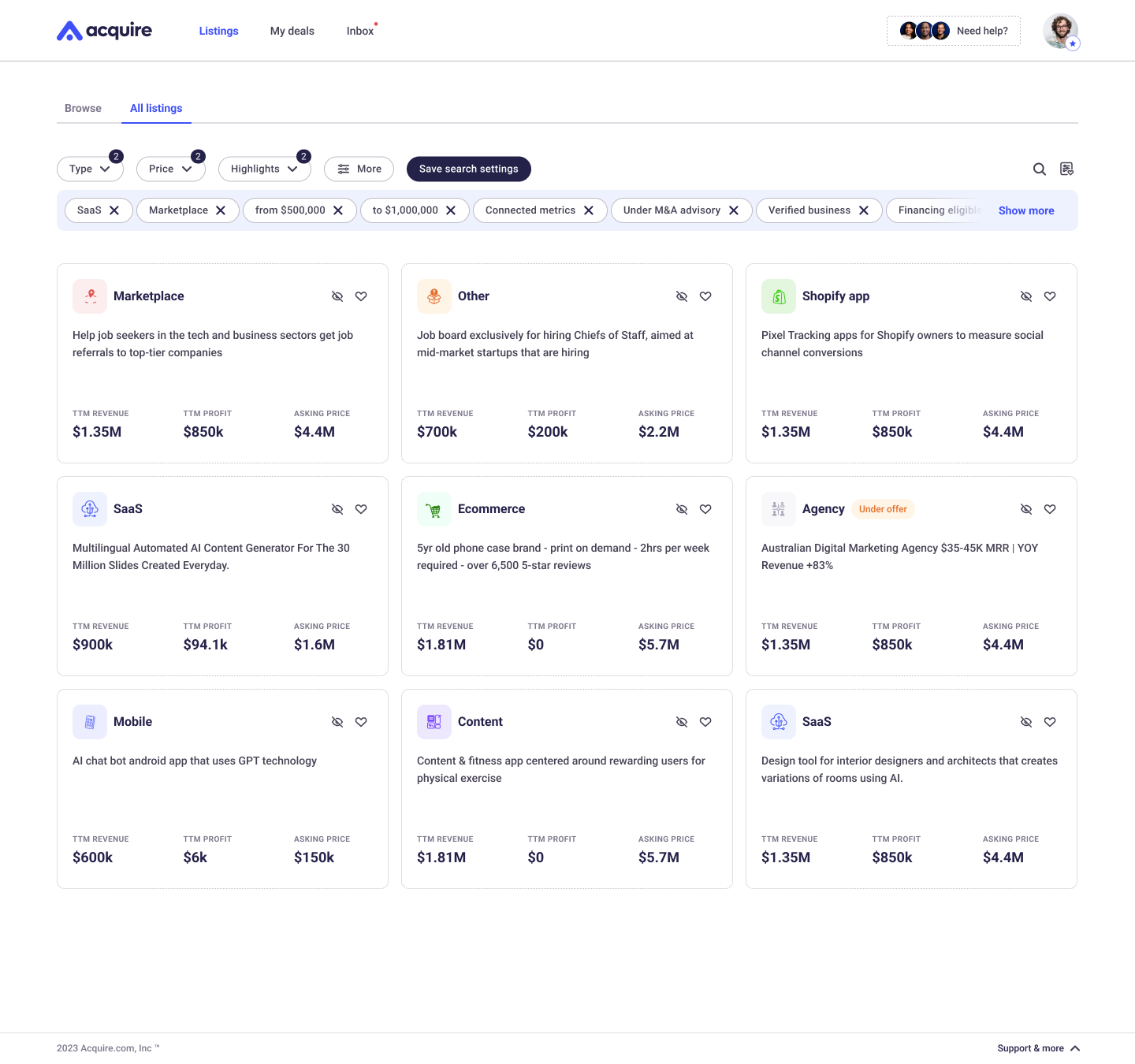
1. Save your search
- Go to Listings, then select All listings.
- Set the search, sort order, and filters you want to save.
- Select Save search settings. On mobile, select Save search.
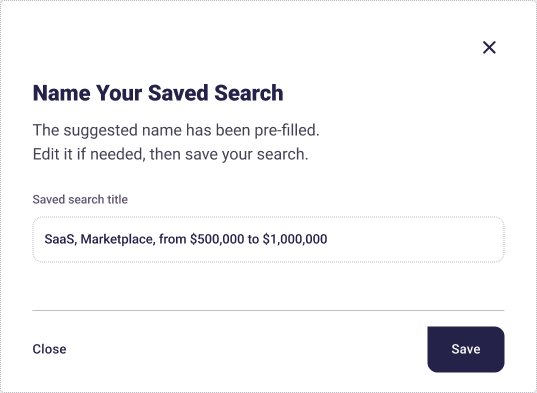
- Review the suggested title and edit it if needed. Titles can contain up to 100 characters.
- Select Save.
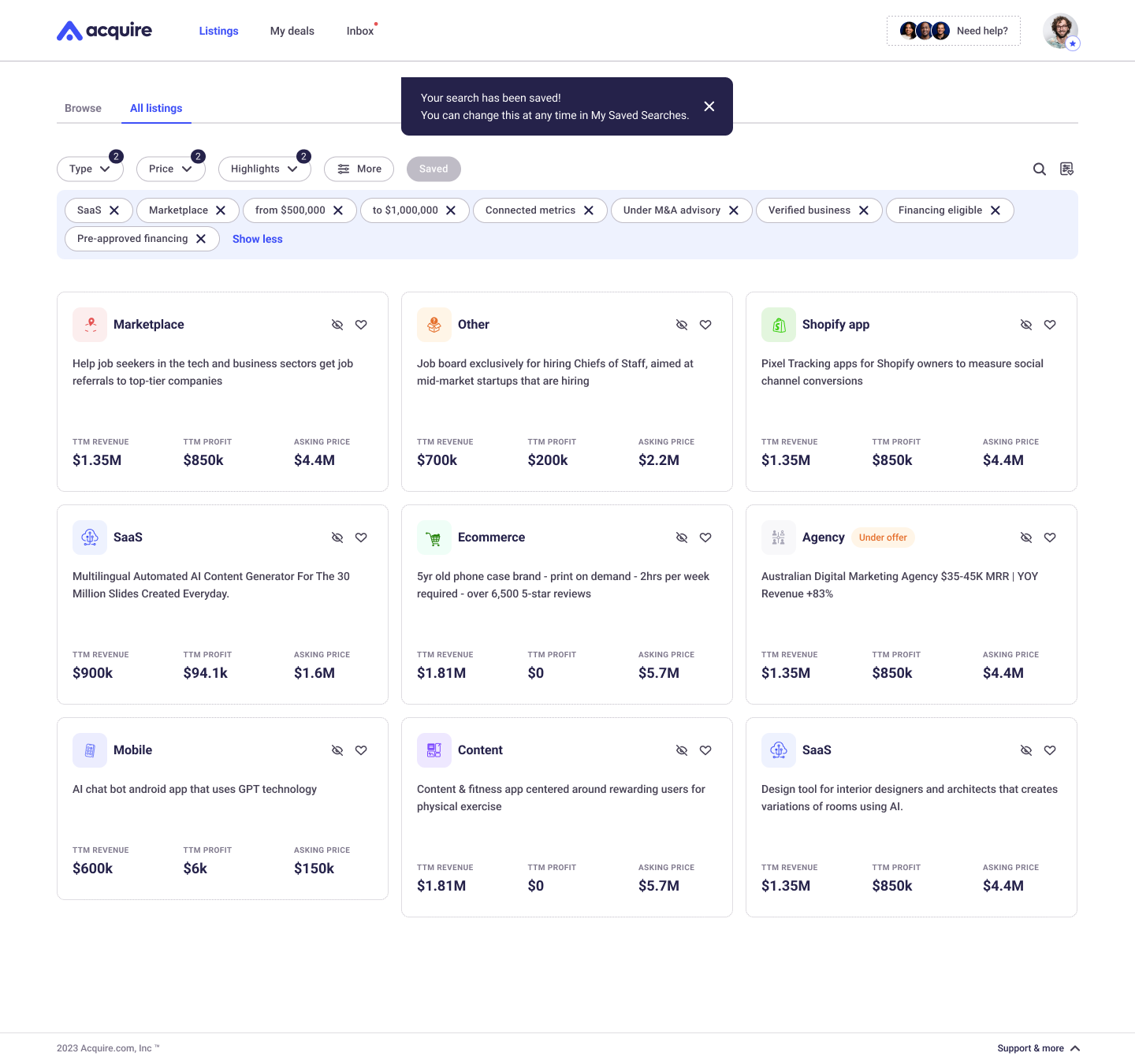
Acquire confirms that your search has been saved. The button changes to Saved until you change the active search or filters.
2. Open your saved searches
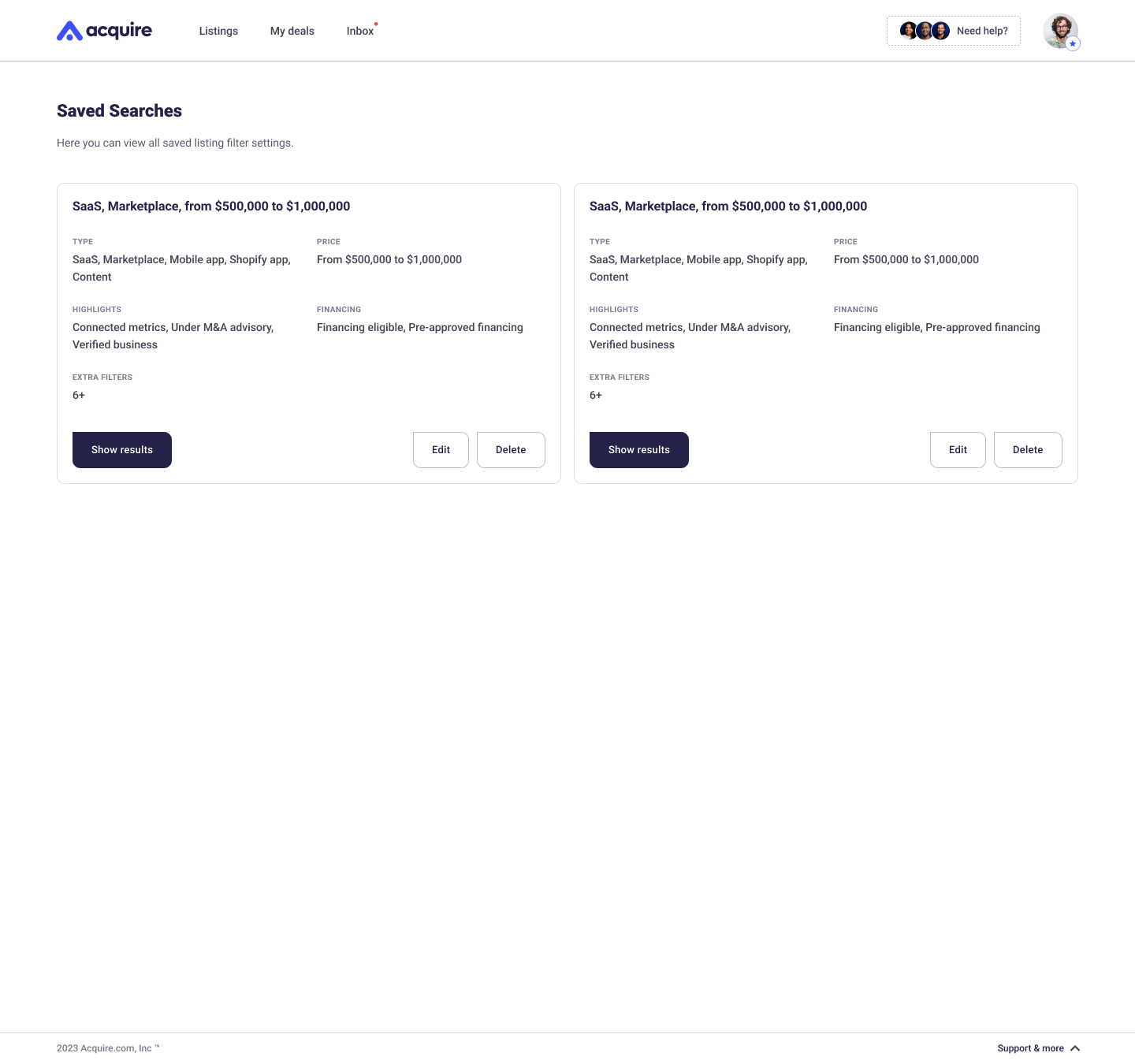
Select the saved-search icon beside the search icon on All listings. This opens the Saved searches page.
Each card shows the search title and a summary of its criteria. When a search has more criteria than the card can show, you’ll also see an Extra filters count.
If you haven’t saved a search yet, select Browse Listings to return to the marketplace and create one.
3. Reapply or update a saved search
- Select Show results to reopen All listings with the saved criteria applied.
- Select Edit to change the title, sort order, or filters, then select Apply to save your changes.
If a saved search uses an older filter format that can no longer be applied, its card tells you that it’s outdated. You can still delete it.
4. Delete a saved search
- Select Delete on the saved-search card.
- Review the confirmation message, then select Delete again.
Deleting a saved search is permanent. It removes the saved criteria, but it doesn’t affect any listings.
Ready to make marketplace browsing faster? Set your filters and save your first search.