![acquire.blog.png]](https://help.acquire.com/hs-fs/hubfs/acquire.blog.png?height=40&name=acquire.blog.png)
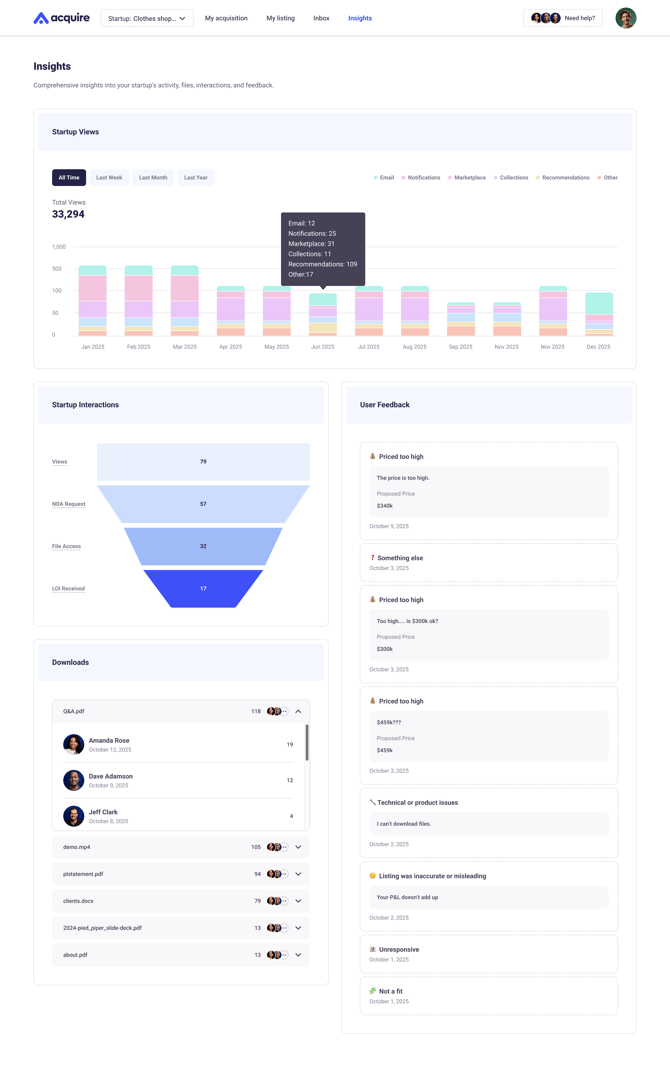
What You Can See in Startup Insights
Startup Insights is organized into four sections:
Startup Views
This chart shows how buyers are discovering and viewing your startup over time. You can switch between:
- All Time
- Last Week
- Last Month
- Last Year
The chart also breaks views down by source, including:
-
Email
- The newsletter and other marketing email campaigns
- New listing product emails
- Other product emails that link buyers back to a startup page
-
Notifications
- Clicks from the in-app Notifications page
-
Marketplace
- Views from the main marketplace / all listings experience
-
Collections
- Popular
- Recently Viewed
- Profitable SaaS
- Under Advisory
- Weekly New
- Established
- Reduced Price
-
Recommendations
- Based on your criteria
- Top recommendations
- Similar startups on a startup page
- Startups for you
- Recommended by views
- Home top picks
-
Other
- Views that don’t fit into one of the source groups above
This helps you understand not just how many views you’re getting, but where that attention is coming from.
Startup Interactions
This section summarizes how buyers are progressing through your listing funnel. It includes:
- Views
- NDA Request
- File Access
- LOI Received
Use this section to quickly understand how interest is converting from visibility into action.
Downloads
The Downloads section shows which files buyers are opening most often.
For each file, you can see:
- Total download count
- Which buyers downloaded it
- When they last accessed it
This is useful for spotting which materials are getting the most attention during diligence.
User Feedback
User Feedback shows buyer feedback tied to your listing. Depending on the situation, this can include reasons such as:
- Priced too high
- Technical or product issues
- Listing was inaccurate or misleading
- Unresponsive
- Not a fit
- Something else
If a buyer suggested a different price, that proposed price may also appear here.
This section can help you understand why buyers passed and where you may want to improve your listing.
How to Access Startup Insights
- Sign in to your seller account.
- Click Insights.
You’ll land on the Insights page for your currently selected startup.
How to Use Startup Insights Effectively
Startup Insights is most useful when you use all four sections together.
For example:
- If your listing has a lot of views but few NDA requests, your listing may need stronger positioning.
- If buyers are downloading files but not sending LOIs, your diligence materials may be creating friction.
- If feedback repeatedly mentions pricing, it may be time to revisit your asking price or pricing rationale.
- If certain traffic sources are driving more attention, you can focus on the channels already performing well.
What If You Don’t See Any Data Yet?
If your listing is new, or buyers haven’t interacted with it yet, some sections may be empty. In that case, you may see messages like:
- No downloaded files yet.
- No feedback yet.
As buyers begin viewing your listing, requesting access, downloading files, and sharing feedback, your Insights page will update automatically.
Please note: Download tracking began when Startup Insights launched on November 13, 2025, so download-based metrics reflect activity from that date onward.